PX4 — Telemetry Radio Setup Guide
All instructions below assume the MicoAir radio's factory default settings: 57600 baud, duplex mode, automatic pairing on power-up (LED solid green).
QGroundControl GCS — official download
Step 1 — Connect the radio to the flight controller
Connect the MicoAir radio to the telemetry port on your PX4 flight controller — usually TELEM1, though other free ports such as TELEM2/3 also work (every serial port on a PX4 flight controller is configurable). Note: the radio's Rx connects to the flight controller's Tx, and Tx to Rx.
On a Pixhawk 2.4.8 or Pixhawk 6, you can connect directly with the supplied cable.
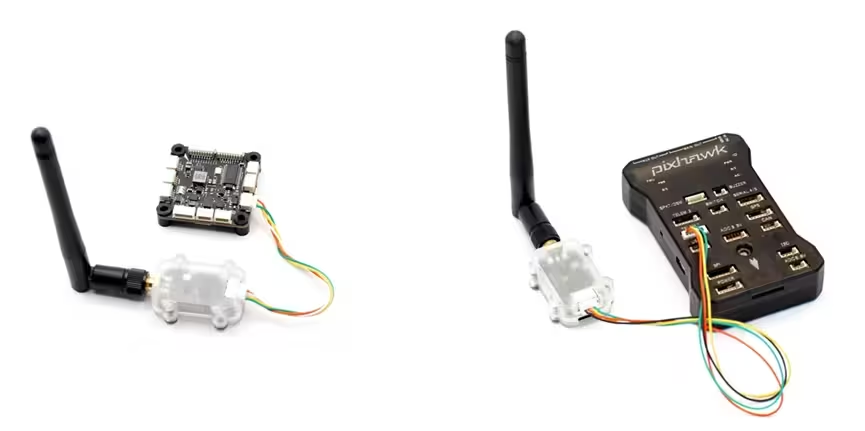
LR900-series and LR24-series radios have different pinouts. Before wiring, check the pinout in the LR900 Telemetry Radio — User Manual. For an LR24, check the pinout in the LR24 User Manual.
The LR900-F/P can draw significant current at high TX power (the LR900-P peaks around 2 W ≈ 400 mA at 5 V). Before powering the radio from a flight-controller TELEM port, confirm that port can supply enough 5 V current — many non-Pixhawk boards are limited. If you're unsure, power the radio from a reliable external 5 V BEC and run only GND / TX / RX to the flight controller.
Step 2 — Configure the flight controller
Connect the flight controller to your computer via USB, open QGroundControl, and connect.
In the parameter list, find MAVLink and set the MAV_0 parameters:
MAV_0_CONFIG = TELEM1(radio connected to the TELEM1 port)MAV_0_FORWARD = DisabledMAV_0_MODE = NormalMAV_0_RATE = 1200 B/s
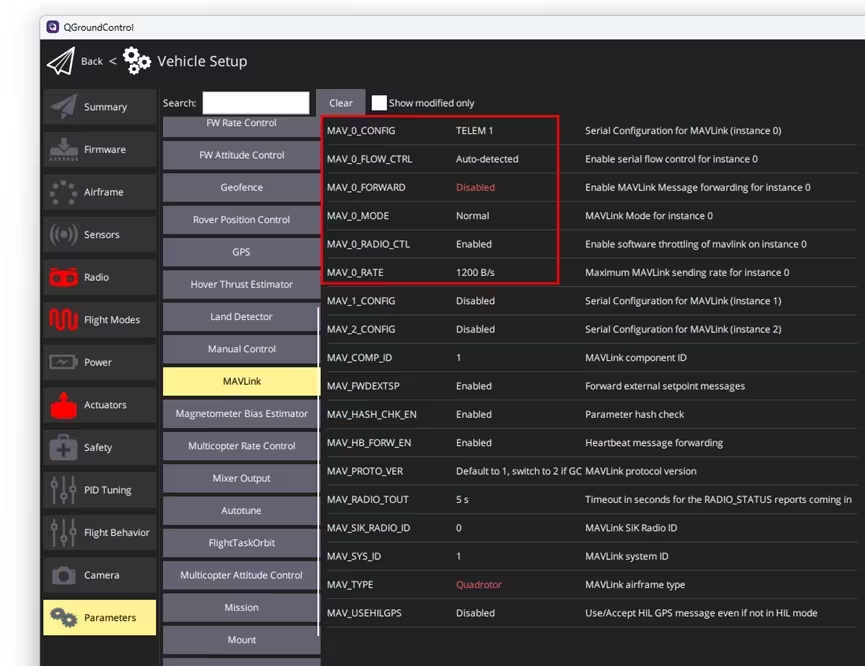
Reboot the flight controller and reconnect. In the parameter list, open the Serial parameters page and set:
SER_TEL1_BAUD = 57600 8N1
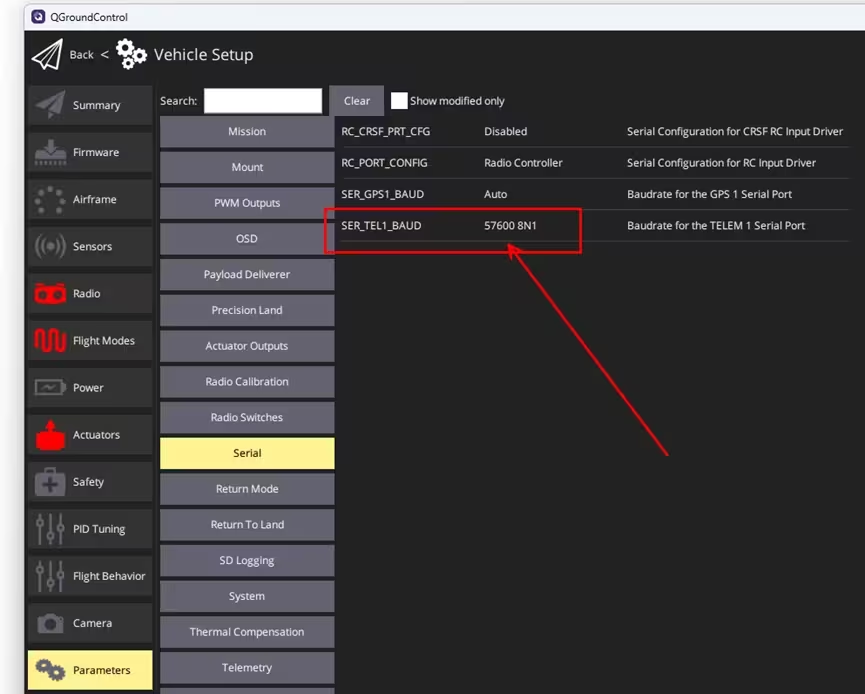
People often ask this. In PX4, a serial port's related parameters (such as baud rate) only become available once that port has been assigned a function. By the same logic, if you can't find a particular PX4 parameter in QGC, some prerequisite function or parameter hasn't been enabled yet.
Step 3 — Connect the other radio to the computer
Connect the second radio to your computer with a Type-C cable. Note: in default mode, MicoAir radios don't require distinguishing an air end from a ground end.
The first time, install the driver. For the CP2102 driver on Windows, see:
CP2102 Driver Installation Guide (Windows)
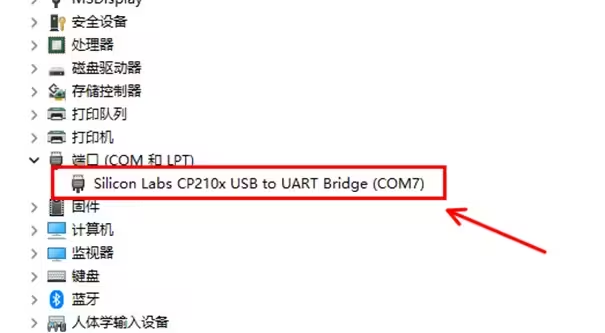
After installation you'll see the CP210x device and its assigned port under Ports in Device Manager — COM7 in the example.
Step 4 — Connect to the flight controller through the radio
Automatic connection
The LR900-F/P and LR24-F/P radios support QGC automatic connection.
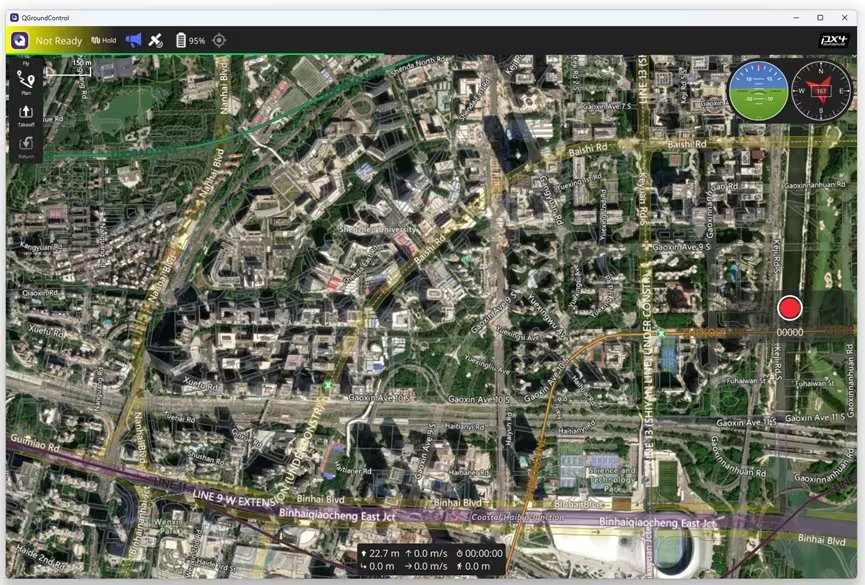
Reopen QGroundControl; normally, with no setup required, QGC automatically detects the radio's port and connects to the flight controller. Parameter loading usually completes within 2–3 seconds, though it can occasionally take around 10 seconds.
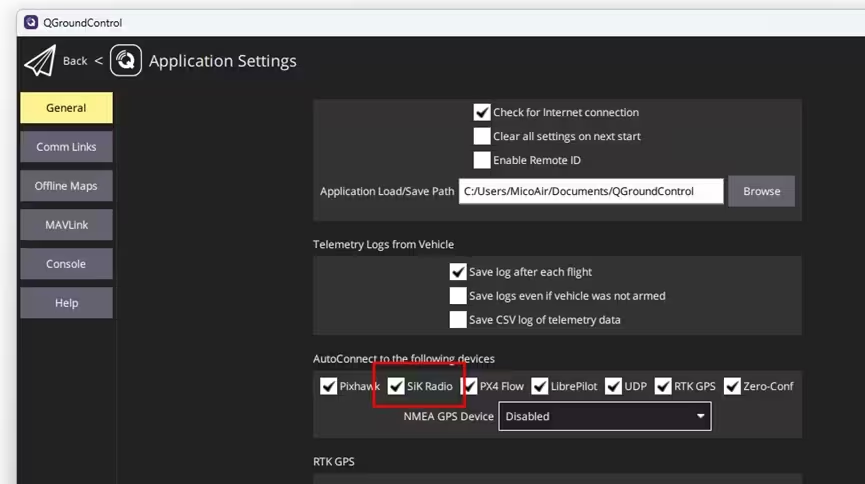
If QGC doesn't auto-detect and connect, check that auto-connect isn't disabled — verify SiK Radio is ticked (below).
Manual connection
The LR900-A radio must be connected manually in QGC.
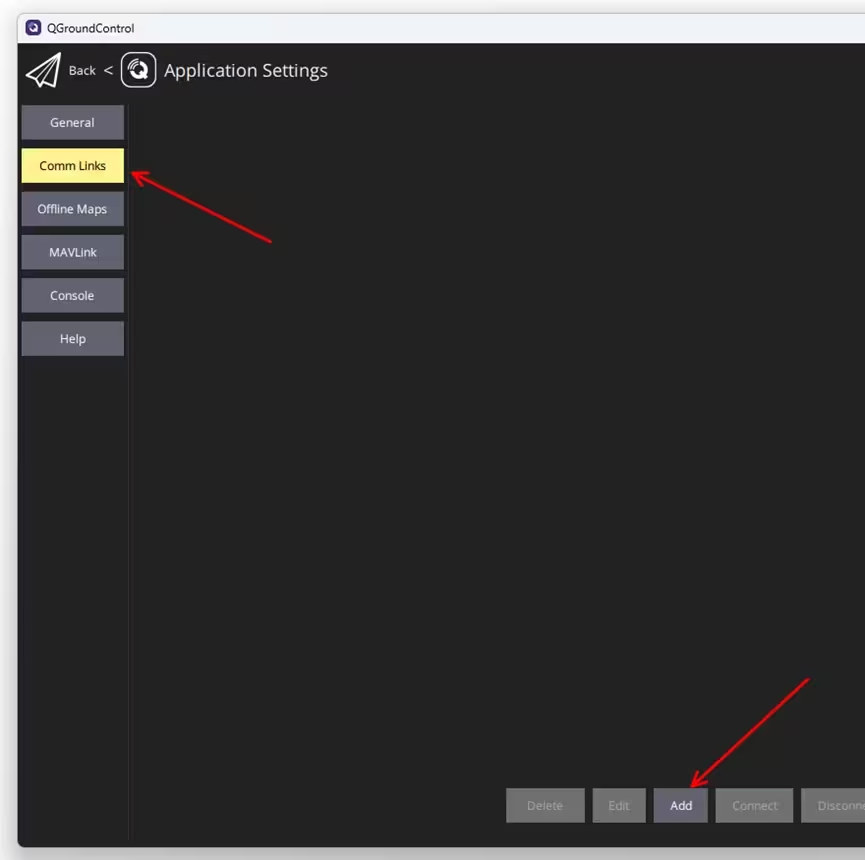
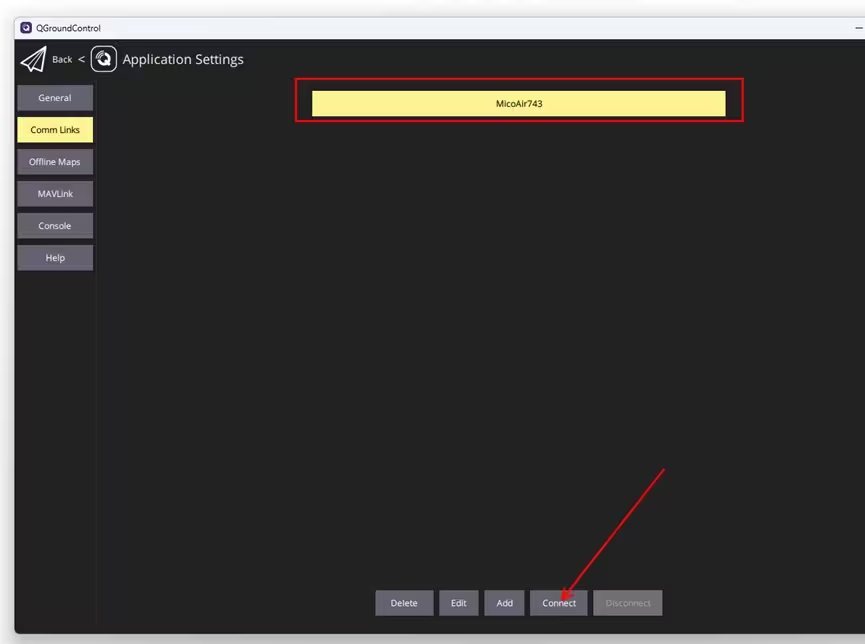
In Application Settings → Comm Links, click Add and edit the connection settings.
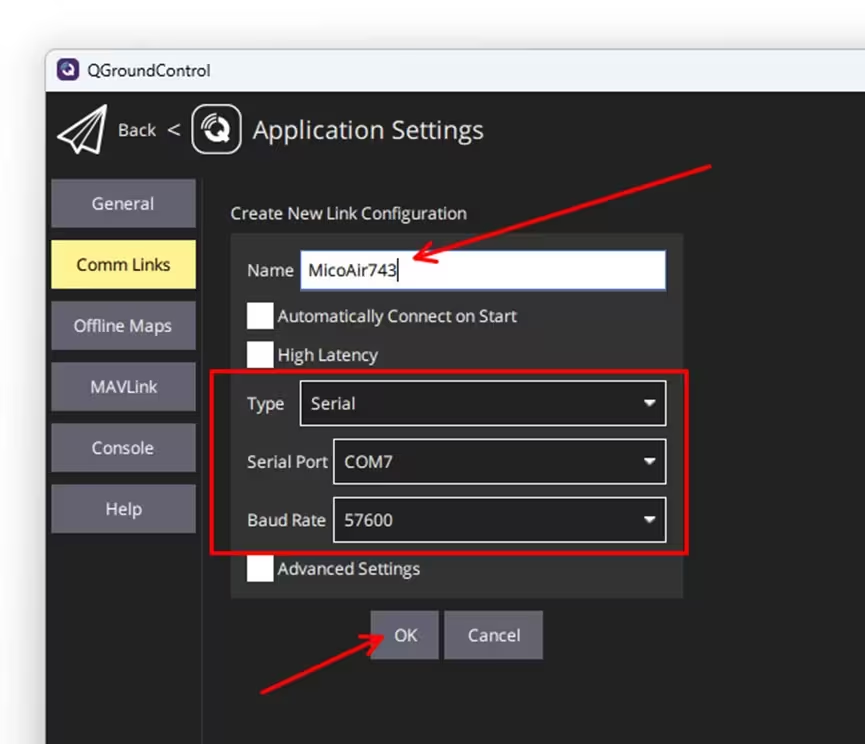
Enter a name, set Type to Serial, select the radio's port, set baud to 57600 (default), and click OK.
Select the connection name, then click Connect below; QGC will begin connecting to the flight controller through the radio.
Related guides
- LR900 Telemetry Radio — User Manual — pinouts, models and every parameter
- LR24 2.4 GHz Telemetry Radio — User Manual
- CP2102 Driver Installation (Windows)
- ArduPilot — Telemetry Setup Guide — the same job on ArduPilot
- PX4 Build & Configuration Walkthrough
- PX4 MAVLink Stream Rates — when the default rates are not enough
- PX4 FAQ
Where to buy
Telemetry radios for PX4, shipped from Canada with free Canada-wide shipping:
- MicoAir LR900-F — 915 MHz, 500 mW — auto-connects in QGroundControl
- MicoAir LR900-P — 915 MHz, 1 W FHSS flagship
- MicoAir LR24-F — 2.4 GHz alternative
Written and maintained by the Robofusion engineering team.