CP2102 Driver Installation Guide (Windows)
The CP2102 is a USB-to-UART IC from Silicon Labs, used on several MicoAir telemetry products such as the LR900-F and LR24-F. The first time you connect a MicoAir radio to a Windows computer, you need to install the CP2102 driver.
Recommended: Silicon Labs official CP210x VCP Drivers — download the Windows package directly from the chip manufacturer.
Mirror: MicoAir CP2102 driver package
Step 1
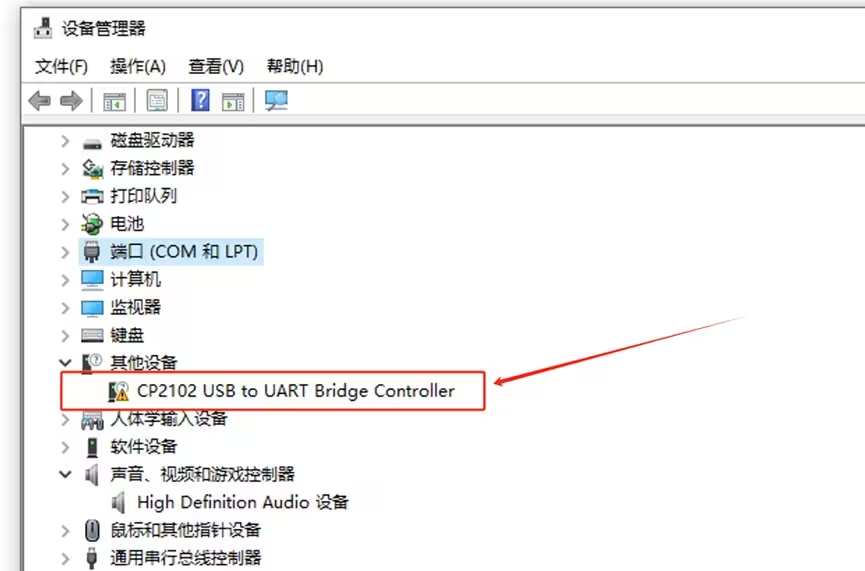
Connect the radio (LR900-F/P, LR24-F/P, etc.) to the computer via USB and open Windows Device Manager. Under Other devices you'll see a CP2102 device with a warning (!) icon — this means the driver isn't installed yet.
Step 2
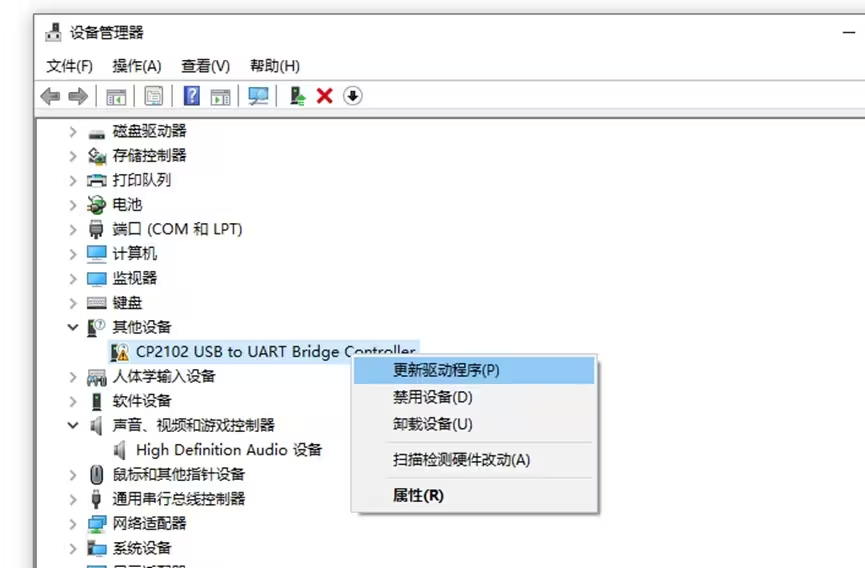
Right-click "CP2102 USB to UART Bridge Controller" and choose the first option, "Update driver."
Step 3
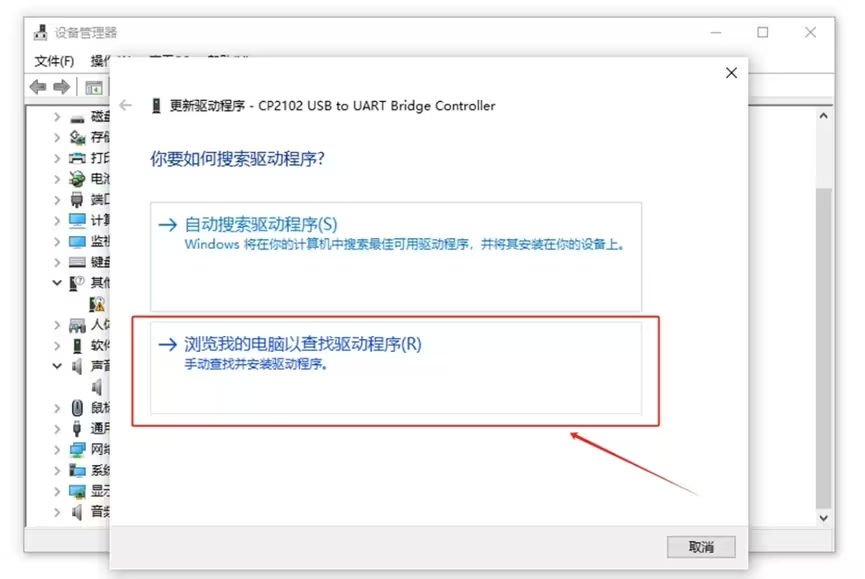
Choose "Browse my computer for drivers."
Step 4
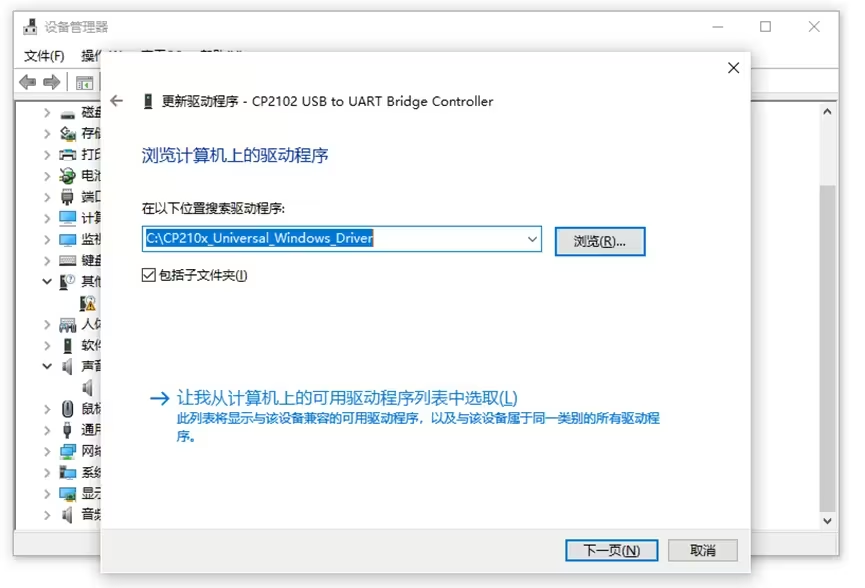
Click "Browse," locate the folder containing the driver files, then click "Next."
Step 5
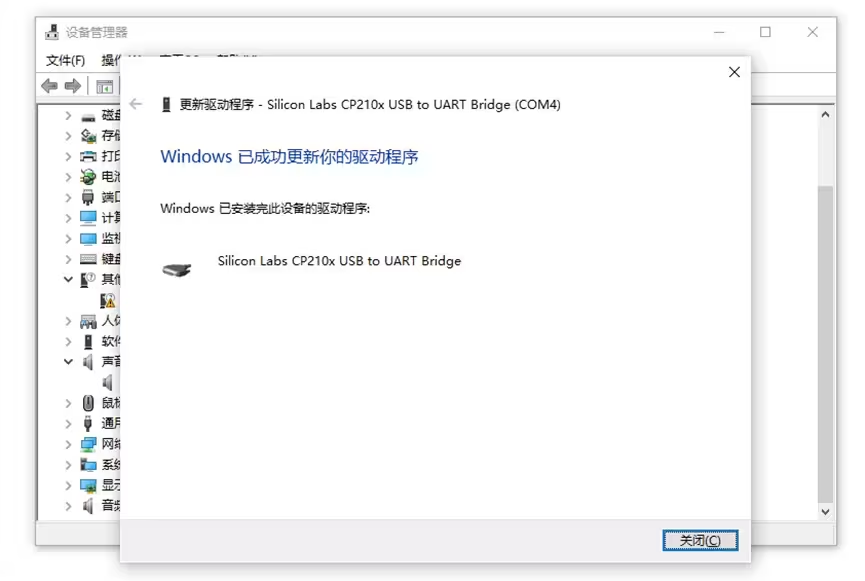
The CP2102 driver installs automatically; after a few seconds you'll see a screen indicating it installed successfully.
Step 6
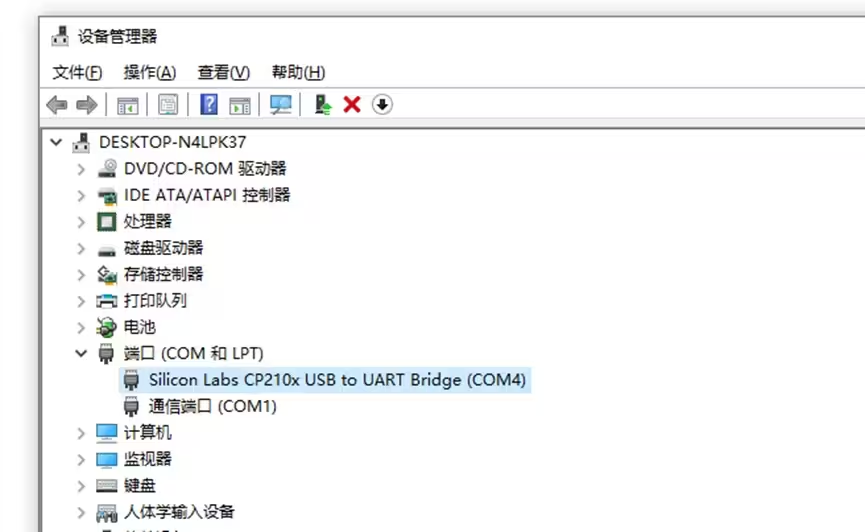
Once installed, you'll see the "Silicon Labs CP210x USB to UART Bridge" device under Ports in Device Manager, along with the COM port number assigned to it (e.g. COM4). You'll need this port number when connecting to the radio in your GCS software.
Related guides
- MicoAssistant Guide — which driver each device needs, and what to do when no port appears
- ArduPilot — Telemetry Setup Guide
- PX4 — Telemetry Setup Guide
- LR900 Telemetry Radio — User Manual
- LR900 Web Configurator
Where to buy
Radios that use the CP2102 chip this driver is for, shipped from Canada with free Canada-wide shipping:
- MicoAir LR900-F — 915 MHz telemetry pair
- MicoAir LR900-P — 915 MHz, 1 W
- MicoAir LR24-F — 2.4 GHz telemetry pair
Written and maintained by the Robofusion engineering team.